Android Auto can run sideloaded apps for free with this new tool
Technology · October 30, 2026

For many users, Apple’s own accessories are the first and last peripherals they get for their desktop computer. That’s understandable: you can buy a Magic Keyboard and/or Magic Mouse at the same time as your new Mac, and if you’re going second-hand, then many sellers bundle them in with the Mac they’re moving on. What’s more, Apple is a name that a lot of people trust.
The problem is that these accessories are often average at best and downright poor choices at worst. Sure, many of them can do the job, but you’d get a much better experience by looking elsewhere.
Here are a few ways you can improve your Mac setup by switching out Apple’s accessories for superior alternatives. It’s a quick move you won’t regret.
By this point, the Magic Mouse and its slimline design are well-known enough to be pretty much iconic. Surely you’ve heard about its odd charging method, but its sleek curves and simple palette are instantly recognizable, easy on the eye, and a great match for your other Apple products. More than that, though, it’s unique among mice in that its entire top surface works as a gesture-enabled trackpad surface. That provides a lot of extra functionality and makes it a seemingly sensible choice for a lot of people.
The trade-off is that this flat design is terrible for hand and wrist comfort. It provides next to no support throughout the day, and that eventually takes its toll—I actually know someone who had to stop using the Magic Mouse due to the severe pain it caused their hand.
For that reason, it’s best to swap out the Magic Mouse for something better. Thankfully, there are much more comfortable and functional alternatives wherever you look.
Logitech’s MX Master 4 mouse ($120 at Amazon) is one example. Unlike many rivals, it has a built-in gesture button: hold it down and move the mouse in one of several directions to perform macOS gestures. It’s not quite as seamless as the Magic Mouse, but is still a good alternative.

Mikael Lindkvist
There’s more to it than that, though. Importantly, it has a more comfortable shape, making it better for long-term usage. It’s stuffed with extras that the Magic Mouse lacks, such as an adaptable MagSpeed scroll wheel, a side-mounted thumb wheel, and super-quiet button clicks.
As for myself, I use the Logitech Pro X Superlight 2 ($160) as my daily driver. It’s extremely lightweight, which makes it supremely comfortable and eliminates any semblance of wrist strain. And it has the added bonus of being fast and agile for gaming, something that’s increasingly a consideration for Mac users these days. It has enough extra buttons for my needs, impressive battery life, plus you can use the mouse while it’s charging (unlike the Magic Mouse).
When Apple ditched the butterfly keyboard and resurrected the MacBook’s Magic Keyboard for a triumphant return, there were cheers from Mac users around the world. Not only was the Magic Keyboard a far better option for Mac laptops, but it was loved by desktop enthusiasts everywhere that Macs could be found.
I must confess, though, that I’m not a massive fan of Apple’s keyboard. Sure, it’s fine. There’s nothing obviously, disastrously wrong with it, especially not compared to the butterfly keyboard fiasco. But shouldn’t we aspire to more than just “fine” in our Mac setups? Shouldn’t we demand only the best experience for our fingers?
Foundry
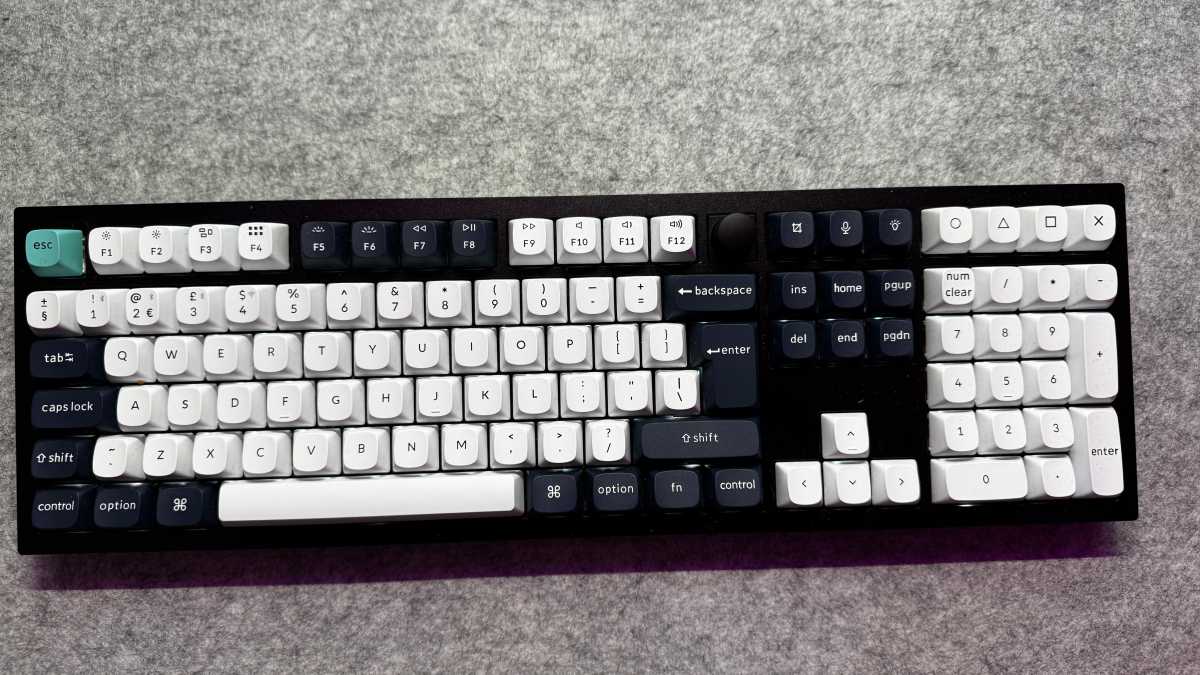
If you share that feeling, you can do yourself a massive favor by losing the Magic Keyboard and replacing it with a proper mechanical keyboard.
These are superior to membrane options like the Magic Keyboard for several reasons. Most noticeably, mechanical keys travel further when you press them. This is not only more comfortable and satisfying in use but also makes you less likely to “bottom out” and slam the keys against the keyboard’s frame while typing, which can lead to finger fatigue over time.
As well as that, mechanical keyboards are not one-size-fits-all, unlike the Magic Keyboard. That means you’re more likely to find something that suits you and your individual needs. You can choose from different key switches, all of which change how the keyboard feels in use, while there are different shapes and sizes to pick from, too. Some are pretty expensive, like Keychron’s Q6 Max ($240), but you’ll definitely be getting a keyboard that won’t need to be replaced anytime soon. And there are plenty of affordable options, too.
Mechanical keyboards offer almost customization, too. Many have hot-swappable switches; you can change the keycaps for a different look and feel, while software such as Via and QMK lets you create almost any key macro and combination you can dream up. And it’s worth noting that mechanical keyboards tend to be made with higher-quality components, such as metal frames and PBT plastics, which provide a superior experience and help them last longer.
Now, I’ll admit that Apple’s Magic Keyboard has one advantage: the Touch ID button. That’s something you won’t get on any other keyboard, due to Apple locking down the Touch ID module with various proprietary security features. But is it worth sacrificing all the benefits of a mechanical keyboard for this one element? I’d say it’s not, especially when there are other ways to unlock your Mac that are just as fast and secure, such as using an Apple Watch.
Apple’s monitors are feature-rich and look the part, but they fall short when it comes to ergonomics. While priced like high-end monitors, base models of the Studio Display and Pro Display XDR are both severely limited in how much you can adjust them. The Studio Display can only be tilted forward and back, with no height adjustment in the entry-level edition, and the Studio Display XDR doesn’t even come with a stand unless you drop another $400.
This problem extends to the iMac, too, where it’s even worse because there’s no upgrade option with extra adjustability. Back when I worked for a major technology publisher, I had to mount my work iMac on a stack of books just to get it to a suitable height. Instead of putting up with this broken situation–and suffering from the discomfort and pain that arise from an unergonomic workstation. It’s a much better idea to get an adjustable monitor. And the good news is that this doesn’t have to mean sacrificing features.
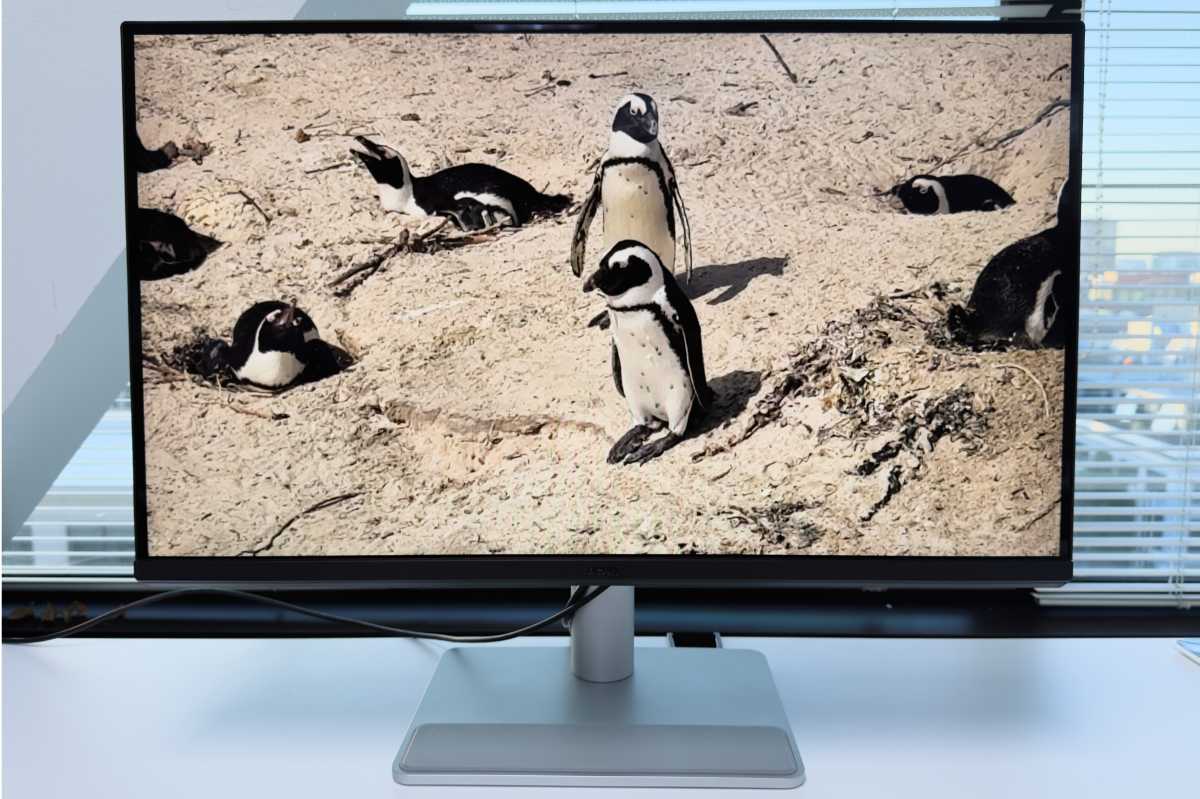
Take the BenQ MA270UP, which was our pick for the best Mac monitor of 2025. It boasts a 4K resolution, a beautiful glossy panel that produces superb image quality, and 95 percent accuracy for the P3 color gamut, plus it can charge your devices up to 90W at a time. Better yet, it has a full range of ergonomic controls, including height, tilt, swivel, and rotation adjustments. There’s also a matte version with a nano-textured surface, much like Apple’s own displays.
Foundry
Those two options provide a far more ergonomic viewing setup than you get from Apple, expensive upgrade or not. They’re also specifically designed for use with Macs. For example, you can adjust the brightness of your MacBook and BenQ’s monitor at the same time by pressing the brightness controls on your laptop.
You get all that for $549, a third of the Studio Display’s price and a fraction of the $4,999 Pro Display XDR. Apple’s displays have a lot going for them, but for an ergonomic experience that won’t break the bank, you’re better off looking elsewhere.
If you’ve come from the world of Windows laptops and decide to try a MacBook, one of the first things you’ll notice is how much better Apple’s speakers are. It’s something that a lot of people overlook, but going from tinny misery to the full-on sound blasters of Apple’s laptops is something to behold.
But at the end of the day, even the best built-in MacBook speakers can’t compete with a dedicated desktop set. The same goes for Apple’s desktop Macs; while they often have extra internal space for audio output, they’re still more restricted than even a halfway-decent desktop speaker.
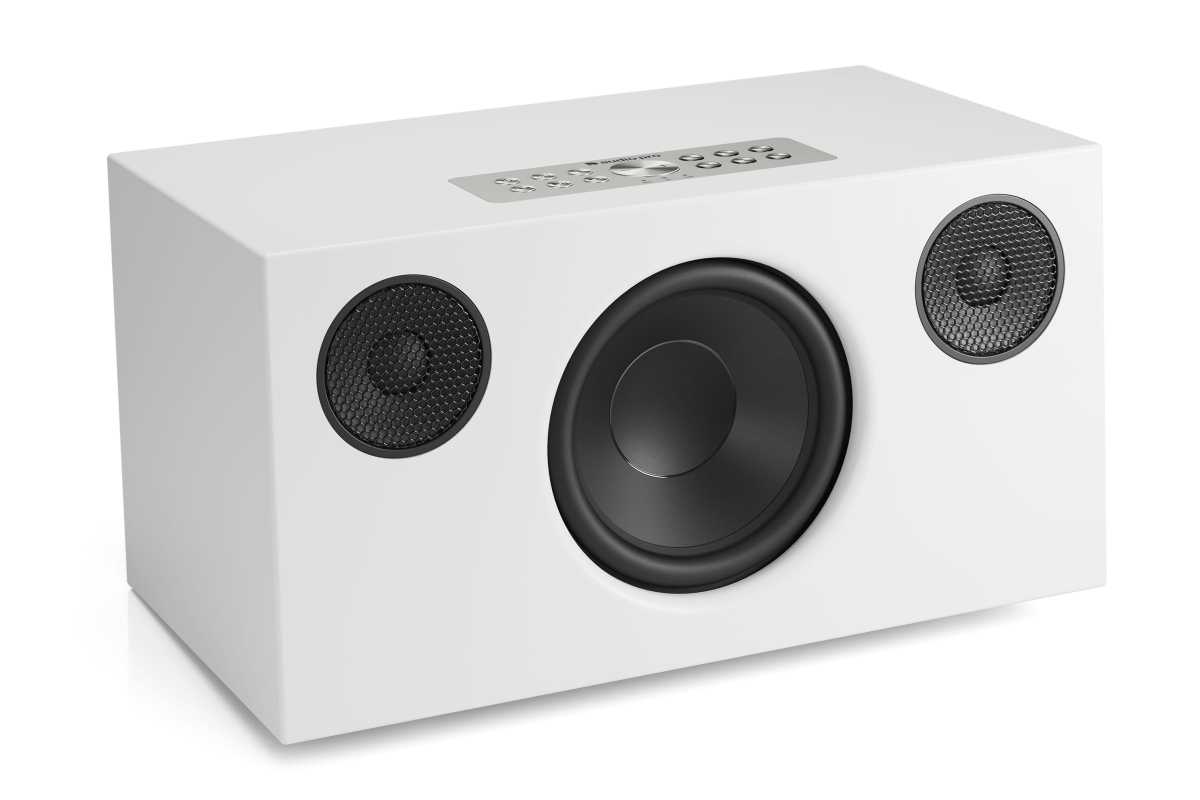
You can remove the fabric grille on the front of the speaker for a more retro look.
For plenty of people, Apple’s own speakers will be acceptable. But you can definitely do better by augmenting your setup with a good external set.
For example, our favorite AirPlay speaker for sound quality, the Audio Pro C10 MKII W ($425 at Amazon), is a great option. It comes with 80W of audio output and supports Bluetooth, Apple’s AAC codec, plus dual-band Wi-Fi. It’s compatible with various streaming services, including Spotify, Amazon Music, and SoundCloud, and also works with AirPlay 2. And most importantly, it sounds fantastic in use.
That would be a great choice to pair with your Mac, but even a couple of HomePod minis will do the trick. Don’t settle for Apple’s built-in speakers, no matter how good they sound – you’ll find even better options elsewhere.